
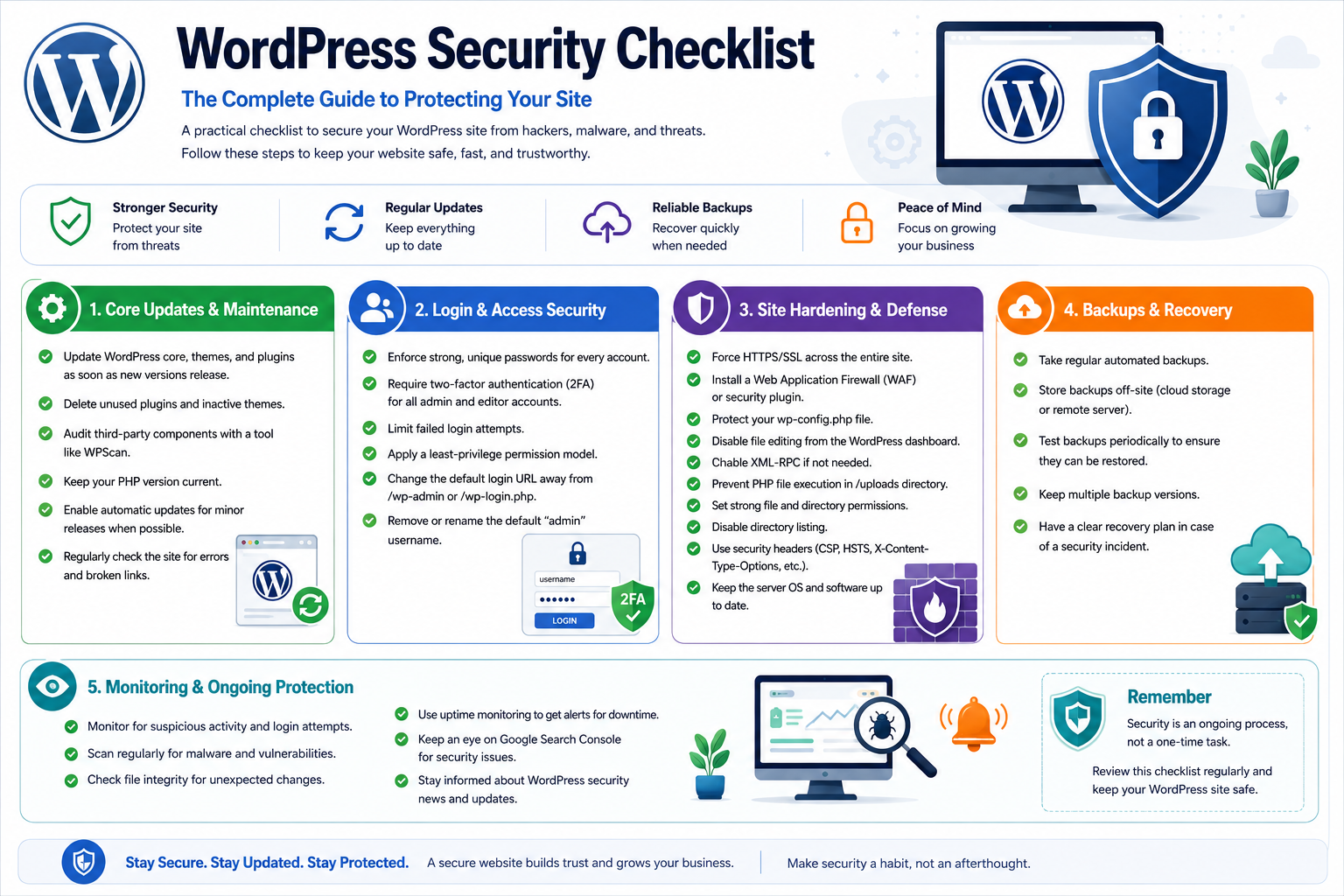
WordPress Security Checklist: The Complete Guide to Protecting Your Site
WordPress powers a huge share of the websites on the internet, which is exactly why a solid WordPress security checklist matters. In fact, that popularity comes with a downside — it’s also the platform hackers target most often.
Whether you run a clinic website, an online store, or a portfolio site, a single overlooked setting can open the door to malware, data theft, or costly downtime.
The good news? Most WordPress security fixes take only a few minutes. Once they’re in place, they keep working in the background.
So, below is a practical WordPress security checklist you can work through today, followed by what to do if your site is already compromised.
Why a WordPress Security Checklist Matters
Before diving into the checklist, it helps to understand what’s at stake.
A poorly secured WordPress site can lead to:
- Data exposure — customer details, payment information, or login credentials falling into the wrong hands
- Lost trust — visitors are quick to abandon a site flagged as unsafe by their browser
- Downtime — a hacked site often has to go offline while you clean it up, which means lost leads and sales
- Legal exposure — a data breach can trigger compliance issues depending on your industry and location
- SEO damage — search engines actively downrank or blocklist compromised sites
Because WordPress relies on plugins and themes built by thousands of independent developers, every extra piece of software you add is a potential entry point.
Still, that’s not a reason to avoid WordPress. It’s simply a reason to treat security as an ongoing habit rather than a one-time task.
Common WordPress Security Checklist Risks
Most attacks fall into a handful of categories, and every WordPress security checklist should account for each one.
| Risk | How It Happens | How to Prevent It |
|---|---|---|
| Outdated software | Unpatched core files, themes, or plugins with known vulnerabilities | Update everything promptly; remove unused extensions |
| Weak credentials | Simple passwords and predictable usernames like “admin” | Enforce strong passwords + 2FA |
| Brute force attacks | Bots repeatedly guessing username/password combinations | Limit login attempts; change the login URL |
| Malicious plugins or themes | Code from untrusted sources, including “free” nulled versions | Only install from official, reputable sources |
| SQL injection & XSS | Malicious code slipped through unprotected input fields | Use a WAF; keep software updated |
| Phishing | Fake login pages or emails designed to steal admin credentials | Train your team; verify requests through known channels |
With those risks in mind, here’s the checklist itself — grouped into four areas so it’s easier to work through.
The WordPress Security Checklist
Core Updates & Maintenance Checklist
- Update WordPress core, themes, and plugins as soon as new versions release — outdated software is the single most common way attackers hack sites.
- Delete unused plugins and inactive themes rather than just deactivating them; after all, dormant code is still a potential entry point.
- Audit third-party components with a vulnerability tracker like WPScan{:target=”_blank” rel=”noopener”} to catch known issues before attackers do.
- Keep your PHP version current. In addition, hosts regularly drop support for old versions, and outdated PHP can carry its own vulnerabilities.
Login & Access Security Checklist
- Enforce strong, unique passwords for every account, not just the admin. For example, a password manager makes this easy for the whole team.
- Require two-factor authentication (2FA) for all administrator and editor accounts.
- Limit failed login attempts to shut down brute-force bots before they can do damage.
- Apply a least-privilege permission model — specifically, give each user only the access their role actually needs.
- Change the default login URL away from
/wp-adminor/wp-login.phpso automated attacks can’t even find your login form.
Site Hardening & Defense Checklist
- Force HTTPS/SSL across the entire site so it encrypts login credentials and form data in transit.
- Install an active Web Application Firewall (WAF) or a security plugin like Wordfence, which filters malicious traffic before it reaches WordPress.
- Protect your wp-config.php file by tightening file permissions and blocking browser access to it, since it holds your database credentials.
- Disable file editing inside the WordPress dashboard so attackers can’t modify code even if they get into an admin account.
- Disable directory browsing; otherwise, raw folder contents stay publicly visible.
- Hide your WordPress version number, since it gives attackers a shortcut to known vulnerabilities for that version.
- Change the default database prefix from
wp_to something unique. - Use SFTP instead of FTP so credentials and files aren’t transmitted in plain text.
- Choose secure, reputable hosting with account isolation, proactive monitoring, and DDoS protection built in.
Recommended file permission settings for a hardened WordPress install:
| File/Directory | Recommended Permission | Why |
|---|---|---|
| wp-config.php | 600 | Only the owner should read/write this file |
| Individual files (.php, .html) | 644 | Owner can edit; others can only read |
| Directories | 755 | Owner has full control; others can read/execute |
| .htaccess | 644 | Owner can edit; others can only read |
| wp-content/uploads | 755 | Should never allow PHP execution |
Backups & Monitoring Checklist
- Schedule automated daily or weekly backups, and store them on a separate off-site server.
- Test your backup restoration process regularly — after all, a backup only helps if you know it actually restores cleanly.
- Enable activity logs to catch unauthorized changes or suspicious traffic spikes early.
- Review the whole checklist on a recurring schedule. In short, security isn’t a one-time setup — monthly works well for most sites.
WordPress Security Plugins at a Glance
| Plugin | Best For | Free Plan Includes |
|---|---|---|
| Wordfence | All-in-one firewall + malware scanning | Firewall, malware scan, login security |
| Sucuri | Website scanning and monitoring | Free scanner, security hardening tips |
| Solid Security | Beginner-friendly hardening | Login protection, basic firewall |
| Security Ninja | Detailed core/file integrity checks | Core scanner, malware detection |
| Jetpack Protect | Brute-force protection + uptime monitoring | Brute-force defense, downtime alerts |
WordPress Security Checklist: What to Do If You’re Hacked
Even with a solid WordPress security checklist in place, no site is 100% immune. If you suspect a breach, act quickly:
- First, take the site offline or isolate it if it shares a server with other sites
- Next, restore your most recent clean backup
- Then change every password — admin, database, and hosting account
- After that, run a full malware scan and remove any suspicious files
- Also review user accounts for anything unfamiliar
- In addition, update your security keys in
wp-config.php - Finally, notify affected users if any customer data may have been exposed
Final Thoughts on Your WordPress Security Checklist
A secure WordPress site isn’t about locking everything down so tightly that it’s hard to use. Instead, it’s about closing the obvious gaps that make automated attacks easy.
First, work through this WordPress security checklist once. Then build the recurring items into your regular maintenance routine.
If you’d rather have this handled for you, Web Dream Agency builds and maintains secure WordPress sites for clinics, service businesses, and growing brands.
That way, you can focus on running your business instead of patching your website.
WordPress Security Checklist FAQs
General WordPress Security Questions
1. Is WordPress safe to use? Yes — WordPress itself is a secure, well-maintained platform.
Most breaches, however, come from outdated plugins, weak passwords, or poor hosting rather than from WordPress core.
2. Why is WordPress targeted by hackers so often? Its huge market share makes it an efficient target.
Because a single vulnerability can potentially affect millions of sites, attackers scan for it at scale.
3. What’s the most common cause of a WordPress hack? Outdated or poorly coded plugins and themes consistently cause the most breaches. In addition, weak or reused passwords are a close second.
4. Does an SSL certificate actually improve security, or just SEO? Both. HTTPS encrypts data in transit, so it protects logins and form submissions, and it also counts as a minor ranking factor with search engines.
5. How long does it take to secure a WordPress site with this checklist? You can typically complete the core steps of this WordPress security checklist — updates, passwords, 2FA, SSL, a security plugin, and backups — in under an hour. Advanced hardening steps take a bit longer, but they’re one-time tasks.
Login & Access Security Questions
6. Do I need a security plugin if my host already offers security features? Yes, ideally both. Hosting-level security protects the server, while a plugin protects the application layer — logins, plugin vulnerabilities, and malware scanning.
7. What is a Web Application Firewall (WAF), and do I really need one? A WAF filters incoming traffic and blocks malicious requests before they reach your site. As a result, it’s one of the highest-impact security measures you can add.
8. Should I change my WordPress login URL? It’s a helpful extra layer, though not a replacement for strong passwords and 2FA. Mainly, it reduces automated bot traffic hitting your login form.
9. How important is two-factor authentication (2FA)? Very. Even if someone steals or guesses a password, 2FA still stops most unauthorized logins from succeeding.
10. What should I do if I get locked out after hardening my site? Most hosts provide FTP/SFTP or a file manager, so you can edit .htaccess or wp-config.php directly to undo the change that locked you out.
Backup & Recovery Security Questions
11. How often should I back up my WordPress site? At least weekly for most sites; for e-commerce or frequently updated content, though, daily or real-time backups are worth the extra cost.
12. Where should backups be stored? Ideally somewhere separate from your main hosting server, such as cloud storage or a dedicated backup service, so a server-level breach can’t wipe out your backups too.
13. How do I know if my WordPress site has already been hacked? Warning signs include unexpected content changes, new admin accounts you didn’t create, and a sudden spike or drop in traffic. Also watch for browser malware warnings or your site showing up flagged in Google search results.
14. What’s the risk of using nulled (pirated) themes or plugins? Nulled software very often hides malicious code inside it. As a result, it’s one of the fastest ways to compromise an otherwise well-secured site.
Plugin & Hosting Security Questions
15. Is a free security plugin enough for a small site? For a low-traffic personal or small business site, a free plugin like Wordfence or Sucuri’s scanner covers the essentials. Higher-traffic or e-commerce sites, on the other hand, benefit more from premium features like real-time rule updates.
16. How often should I update WordPress, themes, and plugins? Check weekly at minimum, and apply security-related updates as soon as WordPress releases them rather than waiting for a scheduled review.
17. Can shared hosting be secure? It can be, as long as your host properly isolates accounts from each other. Because of this, it’s worth asking your host directly how they prevent cross-account access.
18. Should every website owner disable file editing in the dashboard? Yes, for most sites. It’s a quick setting to change, and it removes an easy way for attackers to modify your code if they gain admin access.