
WordPress Maintenance Checklist: The Complete 2026 Guide
First of all, this WordPress maintenance checklist exists because your website isn’t a “set it and forget it” thing. Once your WordPress site goes live, the real work is just getting started.
Basically, without regular care, even a nice-looking site can slow down, get hacked, or quietly lose its search rankings. That’s why every business — from a local clinic to a growing online shop — needs a solid WordPress maintenance checklist.
Specifically, a full WordPress maintenance checklist covers regular backups, software updates, security checks, and speed improvements. As a result, doing these tasks often keeps your site safe, fast, and fully working.
At Web Dream Agency, this is exactly the kind of care we build into every client’s plan. So, in this guide, we’ll go through what a good maintenance routine looks like, step by step.
Why a WordPress Maintenance Checklist Matters
To begin with, WordPress runs a huge part of the web, and because of that, it’s a common target for attackers. According to the WordPress.org security page, keeping core, themes, and plugins updated is one of the most effective ways to stay safe.
For instance, old plugins, unpatched core files, and weak passwords are the top ways hackers get in. However, security isn’t the only reason care matters.
Specifically, regular care also affects:
- Site speed — because a heavy database and large images slow down load times
- SEO rankings — since Google ranks slow, broken, or unsafe sites lower
- User experience — as broken forms and dead links push visitors away
- Uptime — because an unwatched site can go down without anyone noticing
- Sales — since a slow or glitchy site directly hurts leads and orders
In short, care isn’t optional. Instead, it’s what makes your website actually earn back what you spent on it.
WordPress Maintenance Checklist Frequency at a Glance
For a quick look, here’s how often each task in this WordPress maintenance checklist should happen:
| Task | Frequency | Priority |
|---|---|---|
| Backups & uptime checks | Daily | Critical |
| Core, theme & plugin updates | Weekly | Critical |
| Security scan | Monthly | High |
| Database cleanup | Monthly | Medium |
| Broken link & form checks | Monthly | Medium |
| Login & bloat check | Quarterly | High |
| SSL certificate check | Quarterly | Critical |
| Content & SEO refresh | Quarterly/Yearly | Medium |
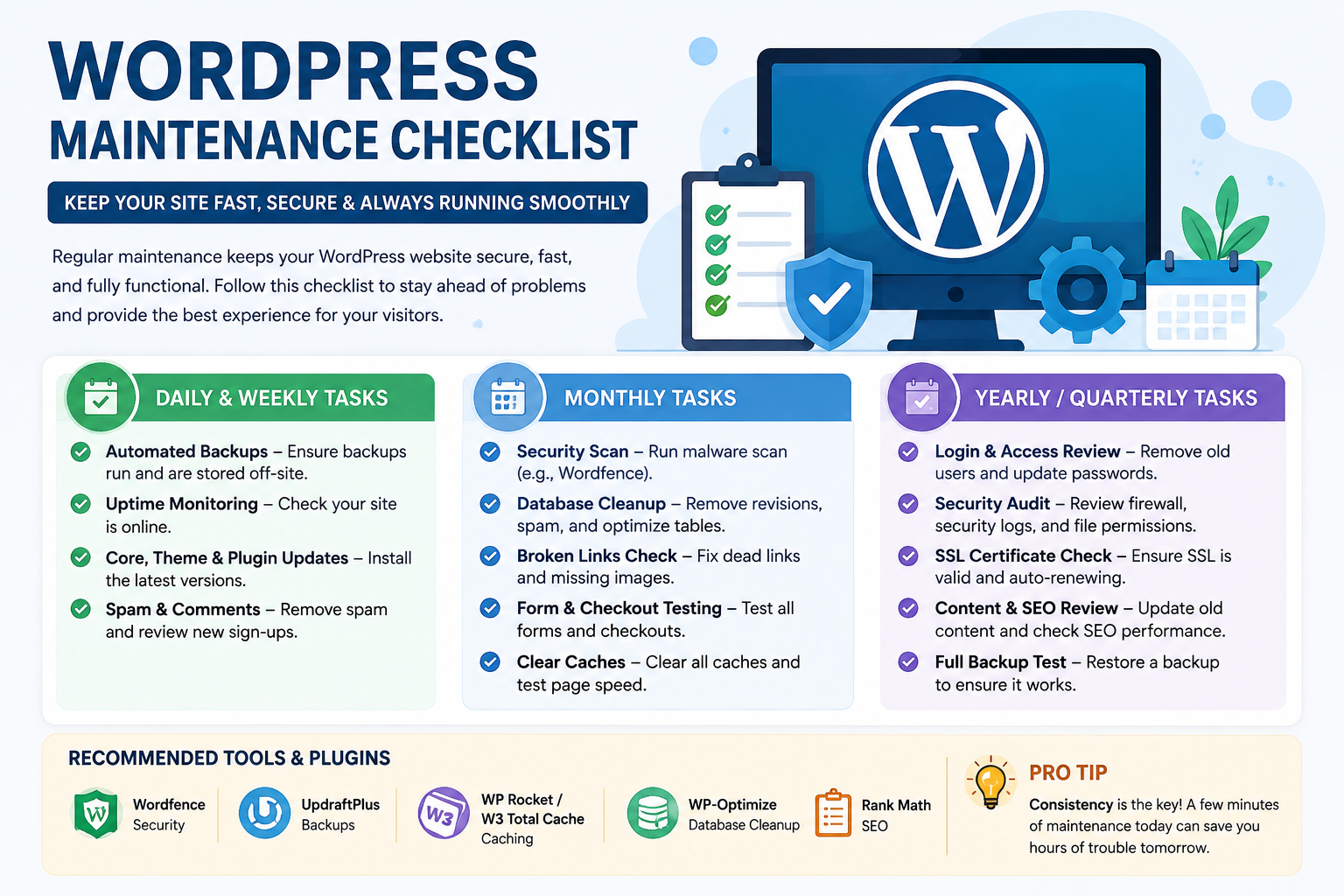
Daily & Weekly WordPress Maintenance Checklist Tasks
To start, here’s what you should check daily and weekly:
- Automated Backups: First, make sure your site and database backup runs smoothly and saves off-site.
- Uptime Monitoring: Next, confirm your site is online using an uptime tracker.
- Core & Plugin Updates: Also, install small security fixes for WordPress core, themes, and plugins.
- Spam & Comments: Finally, clear out spam comments and check new user sign-ups.
Altogether, these daily and weekly habits are your first line of defense.
For example, a missed backup or an old plugin might seem harmless for a week or two. But actually, that’s exactly the kind of gap hackers look for.
Therefore, staying consistent with this rhythm means small problems get caught early, before they turn into real downtime.
Monthly WordPress Maintenance Checklist Tasks
Next, once a month, it helps to go a step further:
- Security Scan: First, run a full malware check with a tool like Wordfence.
- Database Cleanup: Then, clear old post drafts and speed up your database tables.
- Broken Links: Also, check for missing images or dead links, both inside and outside your site.
- Form & Checkout Testing: Next, send a test message through your contact form, or try a test order on your shop.
- Clear Caches: Finally, clear old caches and test how fast your pages load.
Overall, monthly tasks go further than daily checks alone.
For instance, a full security scan catches threats that daily checks might miss. Meanwhile, database cleanup keeps your site running light instead of dragging under years of old data.
Additionally, broken links and untested forms are easy to miss day to day. As a result, if you ignore them, they quietly cost you leads, sales, and search traffic.
Finally, clearing your cache each month also makes sure visitors always see the newest, fastest version of your site.
Quarterly & Yearly WordPress Maintenance Checklist Tasks
After that, every few months, it’s worth zooming out even further:
- Login Audit: First, remove any admin accounts you no longer use.
- Unused Bloat Removal: Then, delete inactive plugins and old default themes to lower risk.
- SSL Certificate Check: Also, confirm your HTTPS certificate is valid and not close to expiry.
- Content & SEO Refresh: Finally, update old blog posts, check metadata, and review your traffic data.
In general, these longer tasks clean up what’s built up over months of running your site.
For example, old admin logins and unused plugins are common blind spots that quietly raise your risk. Likewise, an expired SSL certificate can hurt trust and rankings overnight, so it’s worth checking well before it expires.
Finally, refreshing old content now and then keeps your best posts pulling their weight in search results, instead of fading away.
Recommended Tools for Your WordPress Maintenance Checklist
To make this WordPress maintenance checklist easier to follow, here are some tools that can help with each task:
| Task | Recommended Tool |
|---|---|
| Backups | UpdraftPlus, BlogVault |
| Uptime monitoring | UptimeRobot, Pingdom |
| Security scanning | Wordfence, Sucuri |
| Database cleanup | WP-Optimize |
| Speed testing | Google PageSpeed Insights, GTmetrix |
| Broken link checking | Broken Link Checker |
| SEO & analytics | Yoast SEO, Google Search Console |
Should You Handle Your WordPress Maintenance Checklist Yourself or Hire an Agency?
Generally speaking, for a small personal blog, doing it yourself with a good checklist and a few plugins can work just fine.
However, for business sites — especially ones that handle bookings, payments, or patient details — the risk is higher. In these cases, one missed update or a bad backup can mean real downtime or lost money.
That’s exactly where a managed WordPress maintenance service earns its value. Instead of juggling a growing checklist while also running your business, an agency handles updates, backups, security, and reporting on a steady schedule.
In fact, this is one of the main services we offer at WebDreamAgency, so clients can focus on their business instead of their website.
DIY vs. Managed WordPress Maintenance Checklist
To sum it up, here’s how the two options compare:
| Factor | DIY Maintenance | Managed Agency Service |
|---|---|---|
| Time needed | Several hours a month | Very little — it’s handled for you |
| Skill needed | Moderate to high | None |
| Security checks | Manual, easy to miss | Ongoing, done by pros |
| Backup reliability | Depends on your habits | Automatic & tested |
| Cost | Free (but costs your time) | Monthly fee |
| Best for | Small blogs, hobby sites | Business, clinic & shop sites |
Frequently Asked Questions
General & Frequency
1. How often should I do WordPress maintenance? Basically, uptime checks and backups should run daily, while updates and spam cleanup happen weekly. Meanwhile, deeper tasks like security scans run monthly, and checks like SSL and logins run quarterly or yearly.
2. What happens if I don’t maintain my WordPress site? Essentially, a neglected site becomes slower and easier to hack. Consequently, it can also lose search rankings from broken links, old plugins, or downtime.
3. How long does a full maintenance routine take? Typically, daily and weekly checks take just 10–15 minutes. Meanwhile, monthly tasks may take an hour or two, and quarterly checks can take half a day, depending on site size.
4. Can I automate WordPress maintenance? Yes, mostly. Backups, uptime checks, security scans, and cache clearing can all run on autopilot with plugins, though a manual check each month still helps.
Backups & Security
5. What’s the best backup schedule for WordPress? Generally, daily backups work best for busy sites with fresh content or online sales. On the other hand, weekly backups may be enough for smaller, quieter sites.
6. How do I know if my backups actually work? Simply put, test them. Restore a backup to a staging site now and then so you can confirm the files and database load properly, rather than just assuming.
7. Which plugin is best for security scans? Overall, Wordfence is one of the most popular picks, since it covers malware scanning, a firewall, and login protection in one plugin.
8. How can I check if my SSL certificate is about to expire? Usually, your hosting dashboard shows SSL status. Alternatively, you can use a free online SSL checker to confirm the expiry date.
9. How many admin accounts should a site have? Ideally, only as many as you actually need. That’s because every extra admin login is one more way in for attackers, so remove or downgrade unused ones.
Performance & Content
10. Why does database cleanup matter? Over time, old drafts, spam, and leftover data pile up. Consequently, this slows down your database, which directly affects how fast your pages load.
11. How do broken links affect SEO? Basically, broken links create a bad experience for visitors and waste crawl time, which in turn can hurt how well search engines rank your pages.
12. Should I update plugins the moment a new version drops? Ideally, test big updates on a staging site first. That said, small security patches can usually go live right away, since major updates carry more risk.
13. What counts as “bloat” on a WordPress site? Essentially, bloat means unused plugins, old themes, oversized images, and leftover database clutter. Together, these slow your site down without adding any value.
14. Does clearing cache hurt SEO? No, not at all. In fact, it helps, since it makes sure search engines and visitors always see your newest, fastest-loading pages.
15. How often should I refresh old blog posts? Generally speaking, updating older posts every 6–12 months keeps the info accurate. As a result, it also helps protect their search rankings over time.
Getting Help
16. Is DIY maintenance enough for a business site? For simple sites, yes, DIY can work fine with the right checklist and tools. However, for business-critical sites with bookings or payments, a managed service lowers your risk by a lot.
17. What tools can I use for uptime monitoring? For instance, tools like UptimeRobot or Pingdom send instant alerts the second your site goes down, so you can react fast.
WordPress Maintenance Checklist: Final Thoughts
Ultimately, a strong WordPress maintenance checklist isn’t about doing more work. Rather, it’s about doing the right work, again and again.
So, start with the daily and weekly basics, then build up to the deeper monthly and quarterly checks. As a result, your site stays fast, safe, and ready to turn visitors into customers, day after day.
If you’d rather hand this off completely, that’s exactly the kind of ongoing care our team at Web Dream Agency handles for clients.